
Toyota’s Infotainment System: How To Use Apple CarPlay and Android Auto
Toyota’s infotainment system now works smoothly with Apple CarPlay and Android Auto. These additions have become practically essential to stay connected while driving. Our team at Allen Turner Toyota of Auburn walks you through getting the most from your Toyota’s tech capabilities, no matter whether you use an iPhone or an Android device.
Compatibility and Setup
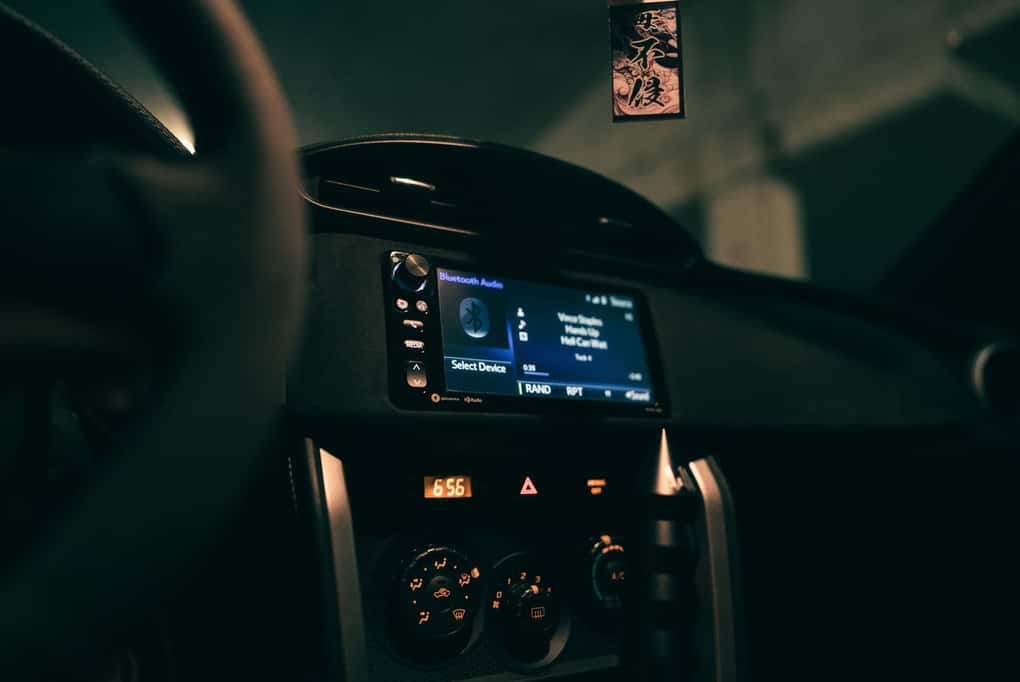
A dashboard of a car with a digital screen by Erik Mclean is licensed with Unsplash License
At least 20 different Toyota models, from Corollas to Tacomas, now come with Android Auto and Apple CarPlay. Setup isn’t complicated, but knowing the basics can save you time and trouble later on.
For Apple CarPlay users, you’ll need an iPhone 5 or newer with iOS 7.1 at minimum. Android users need Android 9 or later. Setup is similar for both. First, plug your phone into the car with a USB cable. Your Toyota’s screen displays a prompt — select Yes. Glance at your phone to confirm the connection and allow access to contacts and your location.
If you run into problems, including the message, “The connected device cannot be recognized,” Toyota has several ways to rectify the problem. Many issues fix themselves when you check your cable or restart your phone and car system. If you’re still stuck, look in your owner’s manual or stop by our dealership. Once you’ve got Android Auto or Apple CarPlay working, you’ll wonder how you ever lived without it.
Features and Customization
With Apple CarPlay, Apple Maps jumps to life with 3D buildings and landmarks that can help you find that new restaurant downtown. Play music, send messages, make calls, and even check your calendar, just by asking Siri. Android Auto offers similar features with Google Maps and Google Assistant.
Both systems allow customization. Move your favorite apps around so they’re right where you need them. With CarPlay, say “Open Spotify” or “Go home” to jump between apps without lifting a finger. If you’re an Android Auto user, you have a split-screen setup that lets you keep an eye on the map while choosing music, which is perfect for those longer drives from Auburn to Birmingham or Atlanta.
These phone integrations are built with your safety in mind. Voice commands keep your eyes on the road and hands on the wheel. Whether you’re finding your way to Jordan-Hare Stadium on game day, queueing up a podcast for your commute, or dealing with unpredictable traffic, that extra safety buffer matters.
Troubleshooting Common Issues
All technology will have issues eventually. If you’ve got Apple CarPlay, you might notice spotty connections, issues with incoming calls, or texts not coming through. First, try resetting your iPhone’s network settings. If that doesn’t work, try swapping out the cable to isolate the problem.
For Android Auto, the system might randomly disconnect, navigation may freeze, or your music could fall silent. In these situations, start by updating your Android Auto app. If that doesn’t work, try clearing the app’s cache or reinstalling it from scratch. And just as with AppleCarPlay, try a different cable.
Keeping your software current is crucial. Toyota now updates their infotainment software about once a year, so make sure you’re up to date. Many Toyota models now get over-the-air updates just like your phone does. Check the Toyota website or app to see if an update is available. If wireless updates aren’t working, visit our dealership or load the update onto a flash drive.
Tips for Maximizing Your Experience
To safely get the most from Apple CarPlay and Android Auto in your Toyota, always set up your apps before you hit the road. Taking your eyes off the road for just two seconds doubles your crash risk. At 25 mph, you’ll travel as far as four football fields just entering a destination address; this makes voice commands your best friend. Be sure to check out other apps that work with these systems, including Spotify, Pandora, and Audible. If you need better traffic information than what comes standard, Waze might be a good choice for you.
Take some time to make everything just right. Play with your audio settings until your music sounds perfect in your Toyota’s cabin. Drag your most-used apps to the front page so they’re always just a tap away, and remember to keep everything up to date.
Enhancing Your Toyota Experience With Apple CarPlay and Android Auto
Understanding Apple CarPlay and Android Auto can change how you feel about driving your Toyota. These systems transfer your smartphone’s apps right onto your dashboard. Staying connected, finding your way around, and controlling your music becomes second nature, all while keeping your attention on the road.
Setting up Apple CarPlay or Android Auto is pretty straightforward, but there are always new things to learn. Keep everything current, use voice commands whenever possible, and organize your apps so they make sense for you. This will give you safer, more enjoyable drives.
Test-Drive a Toyota Today at Allen Turner Toyota of Auburn
To see all this in action, pop in for a test-drive. The friendly, knowledgeable team at our dealership would love to answer any of your questions. Once you’ve experienced a car that integrates seamlessly with your phone, there’s no going back. Drop by today and discover how much better your drives could be with a little help from the right technology.
0 comment(s) so far on Toyota’s Infotainment System: How To Use Apple CarPlay and Android Auto